

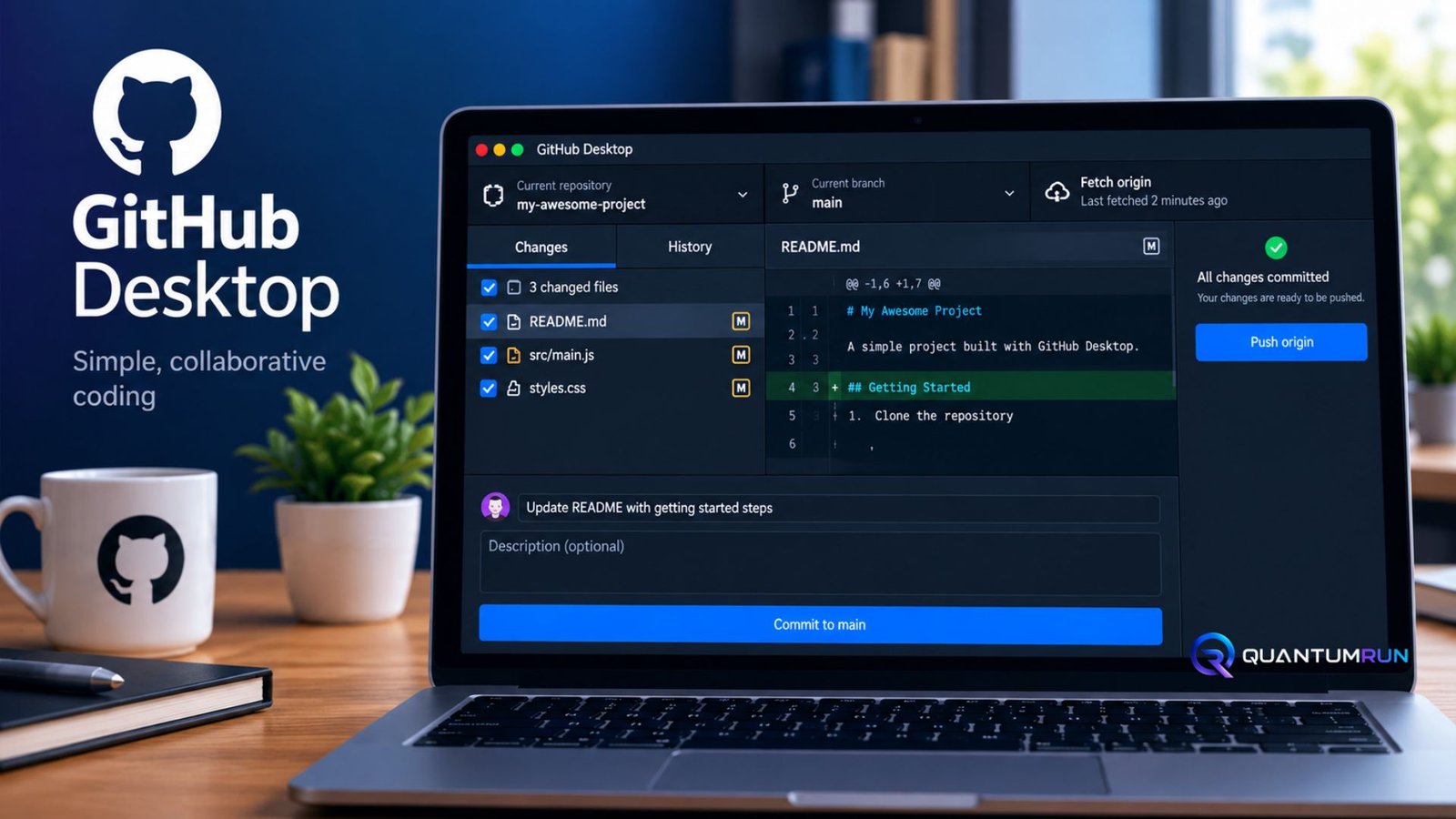
GitHub Desktop transforms Git from a command-line tool into a visual workflow anyone can use. Whether you’re a designer, writer, student, or developer new to version control, GitHub Desktop lets you track changes, collaborate, and manage projects without memorizing terminal commands.
This guide explains what GitHub Desktop does, how to set it up, and the everyday workflows that make it valuable for real projects.
What Is GitHub Desktop?
GitHub Desktop is a free, open-source graphical application built and maintained by GitHub for Windows and macOS. It provides a visual interface for Git operations—cloning repositories, creating branches, staging changes, committing, pushing, pulling, and opening pull requests—without requiring terminal commands for most daily tasks.tms-outsource+2
The app connects directly to your GitHub account, displays file changes with clear diffs, and shows commit history in a timeline you can actually read. For people who find the command line intimidating or unnecessary for their workflow, GitHub Desktop removes that barrier while keeping full Git power available underneath.seekvana+1
Who Should Use GitHub Desktop?
GitHub Desktop fits several types of users particularly well:
- Beginners learning Git who want to understand version control concepts visually before diving into commands
- Non-developers such as designers, writers, researchers, or project managers collaborating on code-adjacent projects
- Small teams who need straightforward branching and pull request workflows without complex Git setups
- Educators and students teaching or learning collaborative workflows in classrooms
- Developers who prefer GUIs for routine tasks while still using the terminal for advanced operations
If your work involves tracking changes over time, collaborating with others, or maintaining multiple versions of files, GitHub Desktop gives you Git’s benefits without the initial learning cliff.seekvana+1
Key Features That Matter
GitHub Desktop includes everything needed for everyday Git workflows:
- Visual change tracking: See exactly what changed in each file before committing, with line-by-line diffs and syntax highlighting
- Branch management: Create, switch, and delete branches with a single click; view branch history visually
- Staging control: Stage entire files or individual chunks (hunks) to craft precise commits
- Commit history: Browse past commits, compare versions, and revert changes when needed
- Pull request integration: Open pull requests directly from the app and check out colleagues’ PR branches locally for testing
- AI-powered commit messages: GitHub Copilot can suggest clear commit messages based on your changes
- Merge conflict assistance: When conflicts occur, Copilot can explain the conflict and suggest resolutions you can accept or edit
- Git worktrees: Work across multiple branches simultaneously without stashing or switching repeatedly (added in version 3.6)github+4
These features handle the core workflows most users repeat daily: cloning repositories, making changes, committing, pushing, pulling, branching, and collaborating through pull requests.
Installing and Setting Up GitHub Desktop
Getting started takes only a few minutes:
- Download: Visit desktop.github.com and download the installer for Windows 10+ or macOS 10.15+.tms-outsource+1
- Install: Run the installer and follow the prompts.
- Sign in: Launch GitHub Desktop and sign in with your GitHub account through the browser authentication window—no tokens or passwords to copy manually.
- Configure Git: When prompted, choose the default option to use your GitHub account name and email address for commits.
- Clone or create: Clone an existing repository from your account, create a new repository, or add an existing local folder to Git management.codingarchitect+1
The setup process is designed to be beginner-friendly, with clear prompts guiding each step.
Everyday Workflows in GitHub Desktop
Cloning a Repository
Click File → Clone Repository, select a repository from your GitHub account list or paste a URL, choose a local folder, and GitHub Desktop downloads everything you need to start working.
Making and Committing Changes
After editing files in your code editor:
- GitHub Desktop shows all changed files in the left panel
- Review diffs to see exactly what changed
- Stage entire files or specific chunks by clicking the file or individual hunks
- Write a commit message (or let Copilot suggest one)
- Click Commit to save the change locallygithub+1
Branching and Switching
Create a new branch from the current branch dropdown, give it a descriptive name (like feature/login-page or fix/typo-header), and start working. Switch between branches by selecting them from the same dropdown—GitHub Desktop handles the underlying Git operations automatically.
Pushing and Pulling
Click Push origin to upload your commits to GitHub. Click Pull origin to download changes from collaborators. GitHub Desktop shows when you’re ahead or behind the remote branch, preventing accidental overwrites.
Opening Pull Requests
When a feature branch is ready, click Create Pull Request to open the PR on GitHub.com directly from the app. Add a title and description, select the base branch, and submit. Teammates can review, comment, and merge without leaving GitHub.
| Workflow Step | GitHub Desktop Action | Command-Line Equivalent |
|---|---|---|
| Clone repository | File → Clone Repository | git clone <url> |
| View changes | Automatic in Changes tab | git status, git diff |
| Stage file | Click file or chunk | git add <file> |
| Commit | Write message, click Commit | git commit -m "message" |
| Push | Click Push origin | git push origin <branch> |
| Pull | Click Pull origin | git pull origin <branch> |
| Create branch | Branch → New Branch | git checkout -b <branch> |
| Switch branch | Select from dropdown | git checkout <branch> |
| Open PR | Create Pull Request button | gh pr create (CLI) |
💡 Pro Tip:
Use GitHub Desktop’s chunk staging to commit related changes separately. If you fixed a typo and added a feature in the same file, stage only the typo fix first, commit it, then stage and commit the feature. This creates cleaner, more reviewable commit history.
GitHub Desktop vs Command Line Git
GitHub Desktop doesn’t replace the command line—it complements it. The command line offers unlimited flexibility for complex operations, scripting, and advanced Git features. GitHub Desktop excels at the 80% of workflows people do daily: viewing changes, committing, branching, pushing, pulling, and opening pull requests.github+1
For beginners and non-developers, GitHub Desktop provides immediate productivity without memorizing commands. For experienced developers, it speeds up routine tasks while keeping the terminal available for complex rebasing, interactive staging, or custom Git workflows.toysforbots+1
Limitations to Know
GitHub Desktop intentionally focuses on common workflows. Advanced operations like interactive rebasing, complex cherry-picking sequences, custom Git hooks, or scripting automated workflows still require the command line or other Git GUIs.toysforbots+1
The app also requires a GitHub account for full integration, though it can work with local repositories. Some enterprise Git hosting platforms may have limited support compared to GitHub.com.
System Requirements and Availability
GitHub Desktop runs on:
- Windows: Windows 10 (64-bit) version 1903 or later
- macOS: macOS 10.15 (Catalina) or later
- Price: Completely free and open-sourcetms-outsource+1
The app receives regular updates, with version 3.6 (released June 2026) adding Git worktrees and deeper Copilot integration for commit authoring and merge conflict resolution.github+1
📌 Key Takeaway:
GitHub Desktop gives you Git’s full version control power through a visual interface, handling everyday workflows—cloning, committing, branching, pushing, pulling, and pull requests—without requiring command-line knowledge for most tasks.
Frequently Asked Questions
Is GitHub Desktop free to use?
Yes, GitHub Desktop is completely free and open-source. It works with any GitHub account, including free personal accounts. There are no paid tiers or feature restrictions for individual users.tms-outsource+1
Do I need to know Git commands to use GitHub Desktop?
No. GitHub Desktop handles Git operations behind the scenes through its visual interface. You can clone, commit, branch, push, pull, and create pull requests without typing any commands. Learning basic Git concepts (commits, branches, remotes) helps, but memorizing commands isn’t necessary.tms-outsource+1
Can I use GitHub Desktop with GitHub Enterprise?
Yes. GitHub Desktop supports GitHub Enterprise Server and GitHub Enterprise Cloud. During setup, add your enterprise domain under File → Options → Accounts, then sign in with your enterprise credentials.
What happens if I make a mistake in GitHub Desktop?
GitHub Desktop includes undo and discard options. You can undo the last commit, discard changes to specific files, or restore previous versions from commit history. For more complex mistakes, the command line or Git reflog provides additional recovery options.github+1
Should I use GitHub Desktop or the command line?
Use GitHub Desktop for everyday workflows: viewing changes, committing, branching, pushing, pulling, and opening pull requests. Use the command line for advanced operations like interactive rebasing, complex scripting, or custom Git workflows. Many developers use both—GitHub Desktop for routine tasks and the terminal when needed.toysforbots+1
Getting the Most from GitHub Desktop
Start by cloning a small personal project or tutorial repository. Practice making changes, committing them with clear messages, creating branches for different features, and pushing to GitHub. As you grow comfortable, explore features like chunk staging, pull request workflows, and Copilot’s commit message suggestions.seekvana+1
For teams, establish simple conventions: descriptive branch names, focused commits with one change per commit, and pull requests for all changes. GitHub Desktop makes these practices easy to follow consistently.
GitHub Desktop removes the intimidation factor from version control while preserving Git’s full capabilities. Whether you’re collaborating on code, tracking document versions, or managing a portfolio of projects, it provides the visual clarity and workflow simplicity that makes Git accessible to everyone.tutorialsdojo+1
Conclusion
GitHub Desktop gives you Git’s full version control power without requiring command-line knowledge for everyday tasks. By handling cloning, committing, branching, pushing, pulling, and pull requests through a clear visual interface, it makes collaboration and change tracking accessible to developers and non-developers alike. Start with a small project, practice the core workflows, and let GitHub Desktop handle the Git complexity while you focus on your work.

1 Comment
Pingback: Sony Xperia 1 VII: Specs, Camera, Price and Verdict - QuantumRun